- Which plugins is Mulligan 2 compatible with?
Mulligan 2's plugin control system is only compatible with AAX plugins that have page table files.
A page table file is a resource that plugin manufacturers can include within the plugin bundle, which defines how to map a plugin’s parameters onto hardware control surfaces. For example, it might specify that a plugin's "Input Gain" parameter should be assigned to knob #1, or that a "Filter Mode" parameter should be assigned to button #3.
Because not every plugin manufacturer includes page table files in their plugins, this means that Mulligan 1’s ability to work with any plugin no longer holds true for Mulligan 2.
I want to be absolutely transparent about this fact. To that end, in Mulligan 2 you can open Window > Plugin Compatibility Report to view which of your plugins will work with Mulligan 2, and which ones won’t.
For the record, many plugin makers do include page table files, so they are compatible with Mulligan 2. A partial list of those makers includes: ACME Audio, Air, Avid, Brainworx, elysia, Eventide, FabFilter, Lindell Audio, Massey, Slate, Softube, SPL, Universal Audio, Vertigo, and Waves.
If a plugin manufacturer were to update their non-compatible plugins by adding page table files, then at that point they would become compatible with Mulligan 2.
Also...
- Mulligan 2 does not work with AudioSuite plugin instances
- Mulligan 2 does not work with MIDI effect plugins (introduced in Pro Tools 2024.3)
- Which MIDI controllers can I use with Mulligan 2?
Short answer: All of them!
Long answer: While Mulligan 2 offers universal MIDI compatibility, some hardware controllers will match Mulligan 2 better than others.
For plugin control, a controller should have both encoders and buttons. (This is different than in Mulligan 1, where plugin control only used knobs.) Some plugin parameters are only mappable to encoders, others only to buttons, and some are mappable to both types of control.
Controllers with encoders (aka rotary encoders or endless encoders) offer a better plugin control experience than those with pots (which have a hard stop point at each end of their rotation). Encoders have the ability to send relative knob data, whereas pots can only send absolute knob data. Mulligan 2 can work with pots for plugin control, but has to perform an internal translation from absolute to relative knob data, and that can be a little awkward in practice.
One caveat: many controllers with encoders still send Absolute data by default (they track the value of each knob internally, a trick that we call "fake absolute" knobs), and you must use the editor supplied by the manufacturer to change their encoders to send Relative data instead.
The only command that cannot be mapped to an encoder is the Current Track Fader command. That must be mapped to a fader or a pot.
- Can Mulligan 2 work alongside a HUI controller?
Yes! Mulligan 2 needs to be in Pro Tools' Peripherals > MIDI Controllers slot #1 in order to function properly:
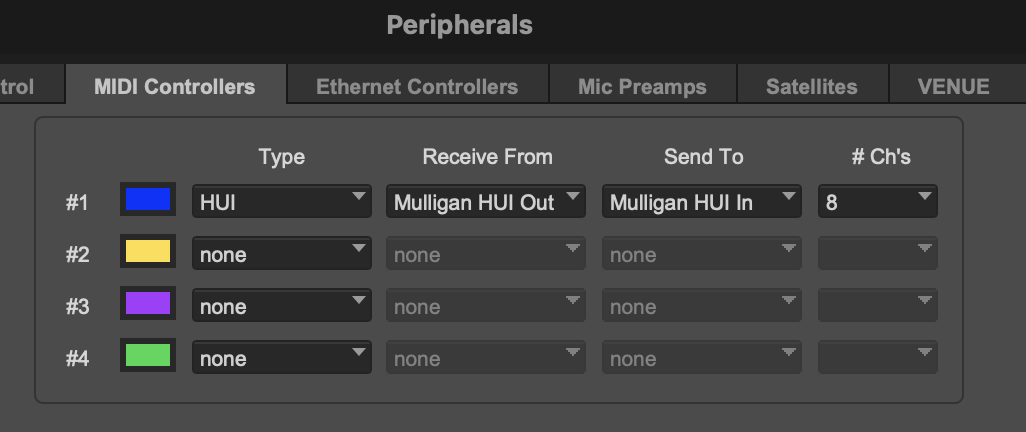
However, Mulligan 2 provides HUI Device Forwarding, which is a bi-directional passthrough that allows it to share slot #1 with hardware HUI controllers.
To enable this feature, in Mulligan select the menu item HUI > HUI Device Forwarding.
Then use the HUI > HUI Device Input and HUI > HUI Device Output menus to select the in and out ports of your HUI hardware. That's all there is to it.
Using this connection method, your Peripherals window will look like the screenshot above. Only Mulligan connects directly to Pro Tools, but your HUI hardware gets routed through Mulligan, and that way it also gets access to slot #1.
- Can Mulligan 2 work alongside a EUCON controller?
As of March 2026, the answer is yes! All Mulligan 2 commands, including full plugin control, are working alongside a EUCON controller.
Avid's EUCON control system has had some conflicts in the past with the HUI protocol used by Mulligan 2. While most of Mulligan's commands would function as normal when running EUCON, it would block Mulligan's ability to control plugins. Recent updates to Pro Tools and the EUCON system have resolved these issues.
This combination of installed versions has been checked by in-house testing and verified by multiple users:
- macOS Sequoia 15.7.5
- Pro Tools 2025.12
- EUCON 2026.3
The following resources on Avid's website might help you bring your system up to date:
- I mapped a knob, but now the plugin parameter jumps around when I try to turn it. What went wrong?
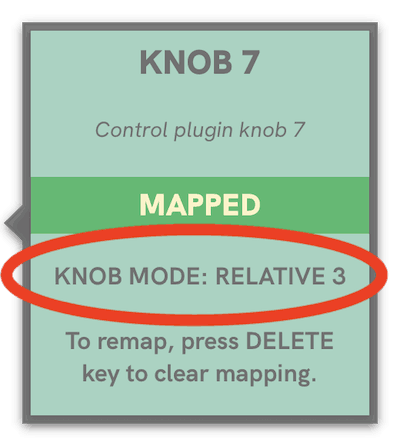
These behaviors indicate that an incorrect knob mode was set for that command. The knob mode detected by Mulligan must match the actual mode that your MIDI controller is using to send data from that knob.
Please repeat mapping the command in the Mapping Window, being sure to turn the knob slowly to the left so that Mulligan can detect the correct knob mode.
When you click on command, the Mapping Assistant window will show which knob mode was detected for that mapping:
- What kind of output does Mulligan 2 send to MIDI controllers?
When appropriate, the mapped commands in Mulligan show their status by lighting up the LEDs for a controller’s buttons. For example, the Stop and Play transport buttons light up to show when the transport is stopped or is playing, respectively.
For plugin controls, however, the LED displays work differently. Plugin knobs and buttons will light up (to their max value) to show that they are mapped to a plugin parameter in the current Plugin Map. If a knob or button is not mapped to a plugin parameter, its LEDs will be off.
Knobs and buttons will not change their LED displays when their control value changes (e.g. if a switch parameter is turned from “off” to “on”, or a gain knob changes its position). The LEDs for plugin knobs and buttons only indicate whether or not they are currently mapped to a plugin parameter.
Note: the LED behavior for plugin knobs described above only happens when an encoder is mapped in a Relative knob mode, which is what we highly recommend. When using plugin knobs in Absolute knob mode, no MIDI feedback is sent to them, because this can cause erratic jumping and resetting of their positions.
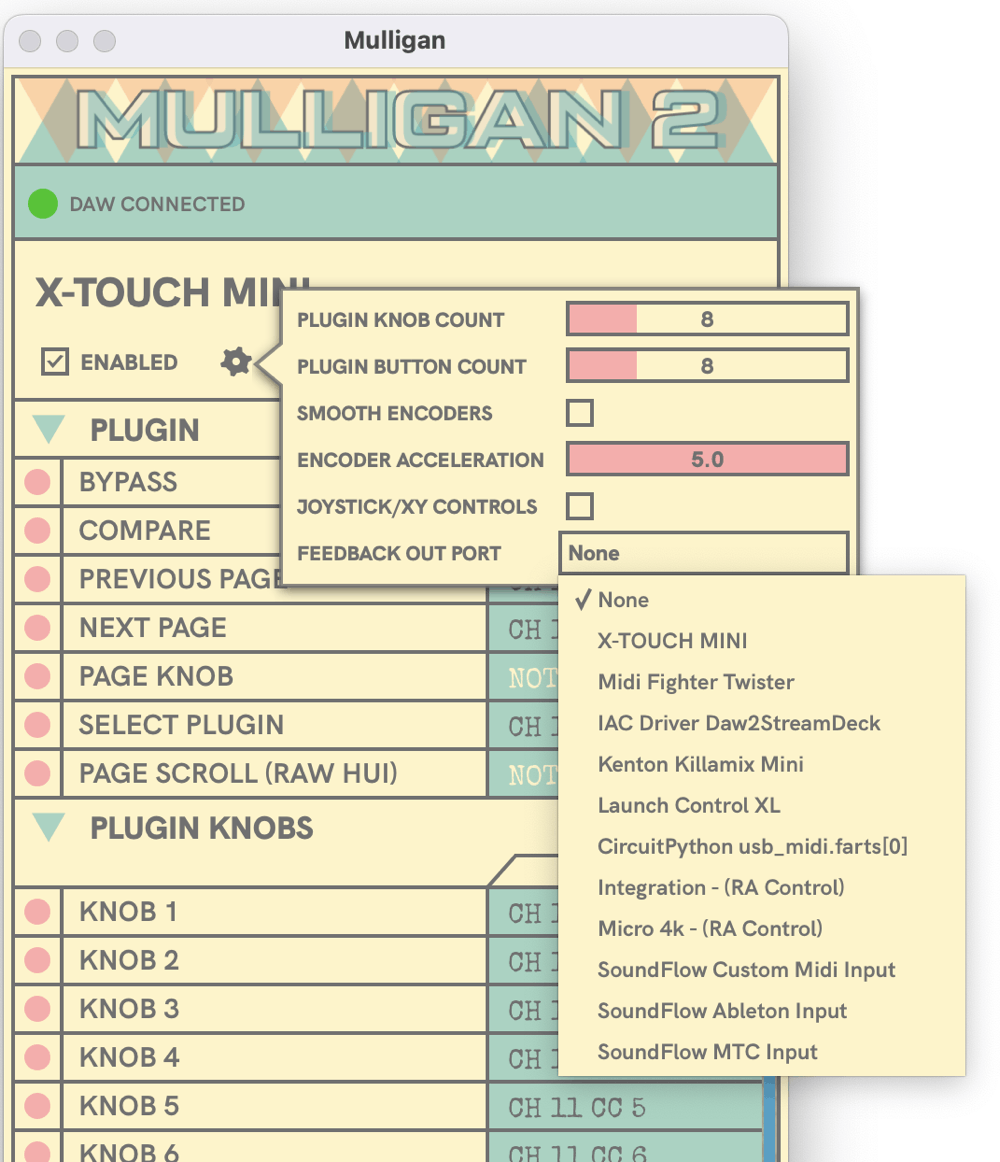
Mulligan 2 attempts to find the correct MIDI port to use to send this feedback to each controller. If it guesses incorrectly, you can open Device Settings (by clicking the gear icon under the controller's name) to change the Feedback Output Port selection. If you would like to turn off the output to a specific controller, you can choose the "None" option from this menu.
FAQ for Mulligan 2
Don't Forget //
© 2026 reFuse Software, LLC /// ///